Showing posts with label PLUGIN. Show all posts

Monday, 14 January 2013

Adobe Flash Versus GNOME Totem Vegas on openSUSE 12.2 GNOME 3.4.2

Totem Vegas Flash Plugin
 Totem, the good old Multimedia player from GNOME stable has become the new superstar in Linux world after it has come out with its own flash compatible plug-in that allows Linux users to play flash videos from major video streaming sites like youtube and metacafe. Vegas servers as a good alternative to Adobe Flash for playing flash videos in the aforementioned sites.
 The new Totem plug-in is called (vegas) browser plugin. Totem is multimedia player for the GNOME desktop based on GStreamer framework. The "totem-browser-plugin-vegas" allows one to play  Flash videos with virtually any browser like Firefox, Seamonkey, Opera etc. The advent of Vegas is good news especially since Adobe has stopped providing Flash Player for Linux.
Vegas Pluses
  • Can be installed along side Adobe Flash.
  • Works on variety of browsers.
  • Supports fullscreen and non fullscreen modes.
  • Can be easily disabled and enabled as described below.
Install Vegas
Various things to do before installing Vegas on openSUSE 12.2 are:-
  • Configure "Community repositories" using YaST similar to what is described in this post.
  • Finish the Multimedia related steps described in this post.
Install Vegas using YaST
 To locate YaST installer on GNOME 3.X desktop you can use the left "win" key or "Alt+F1" key combination to open "Activities" window. In this window you can start typing a search query like "install" when YaST installer will show up grouped under "Applications" as shown below.
GNOME 3.4.2 YaST Installer
 After opening YaST installer you can type in the search query in YaST as shown below.  After locating Vegas you can select the required software using the relevant checkbox . To complete installation you can press the "Apply" button.
GNOME 3.4.2 YaST Installer Totem Vegas
Install Vegas using zypper.
 First we need to open command launcher using key combination "Alt+F2" . Then invoke the terminal using the command "gnome-terminal". After terminal opens, we can use the "zypper" command to install the relevant packages as shown below.
$sudo -u root zypper in totem*vegas*
Loading repository data...
Reading installed packages...
Resolving package dependencies...
The following NEW package is going to be installed:
  totem-browser-plugin-vegas
1 new package to install.
Overall download size: 56.0 KiB. After the operation, additional 71.5 KiB will
be used.
Continue? [y/n/?] (y): y
Retrieving package totem-browser-plugin-vegas-3.4.3-1.1.1.x86_64
                                           (1/1),  56.0 KiB ( 71.5 KiB unpacked)
Retrieving: totem-browser-plugin-vegas-3.4.3-1.1.1.x86_64.rpm[done (58.5 KiB/s)]
Installing: totem-browser-plugin-vegas-3.4.3-1.1.1 .......................[done]
Notes:- "sudo" is command to execute a command as another user , "-u" option specifies the user which is "root" in this case, "zypper" is the command for managing packages, "in" option stands for installation, zypper allows wildcards like "*" while specifying package names.
Configure Vegas as Flash player
 To configure Vegas as the default plugin to handle flash content on your browser of choice, you may need to disable the Adobe flash plugin. You can easily do this using "Add-ons Manager" in Firefox and SeaMonkey as shown below.
Configure Vegas Flash Plugin Addon Manager SeaMonkey Firefox
 Similarly in Opera you need to open the "opera:plugins" page through the location or address bar and disable the relevant plugin.
Configure Vegas Flash Plugin Opera opera:plugins
Screenshot of Youtube video in Opera played using Vegas
Youtube video in Opera played using Vegas
Screenshot of Metacafe video in SeaMonkey played using Vegas
Metacafe video SeaMonkey Vegas
Short Video Clip comparing the working of Vegas and Adobe Flash
 This is a short screencast comparing video playing capability of Adobe Flash plug-in (Opera) and Totem plug-in Vegas (SeaMonkey). Screen capture done on GNOME 3.4.2 desktop using built in Screencasting tool. Control+Shift+Alt+R keybinding starts and stops the recording. The screencast was generated in "*.webm" format and is readily compatible with youtube. The video first shows SeaMonkey playing Metacafe and Youtube videos in fullscreen and normal mode using Vegas plugin . Then we switch over to Opera which plays same videos using flash plugin. The Screencast proves beyond a doubt that Vegas has good video playing capability and can switch quite smoothly between normal and full screen modes :-)

Thursday, 5 January 2012

GKrellM on GNOME 3 openSUSE 12.1

 
 GKrellM is a GTK toolkit  based software that can be used to monitor the status of CPUs, main memory, hard disks, network interfaces, local and remote mailboxes, and many other things. Plugins are available for a multitude of tasks like showing weather updates.This article is an overview of the capabilities of  GKrellM on GNOME 3.2.1 openSUSE 12.1 (ASPARAGUS)
GKrellM is so cool because:-
==>It is compatible with GNOME 3
==>It very light weight
==>It is skinnable
==>Has a number of awesome plugins
==>Easily configurable
==>It can act in panel mode(it will not show up in alt+tab list)
==>I can monitor my monthly internet usage.It can also show day and weekly usage stats too.
Installation Of GkrellM
==>It is available in Main repo(OSS)
==>Open the terminal (type in "gnome-terminal" and hit return or enter after pressing Alt+F2 key combination)
==> Execute the command :- "sudo zypper in gkrellm"
Note:- You may need to enter admin passcode when prompted and press y when it asks you whether it can install so and so software.
Add GKrellM to Startup
How to Start GKrellM along with your OS?
==>If you want to start the application along with GNOME then you need to add it to "gnome-session-properties".
==>Press key combination "Alt+F2" an type in "gnome-session-properties".

==>In the session properties windows,use add button.Give any name of your liking.In the command text-box you need to use "gkrellm" in lower case as demonstrated below. Press "Save" button and from next boot the application will start automatically

Configuring GkrellM
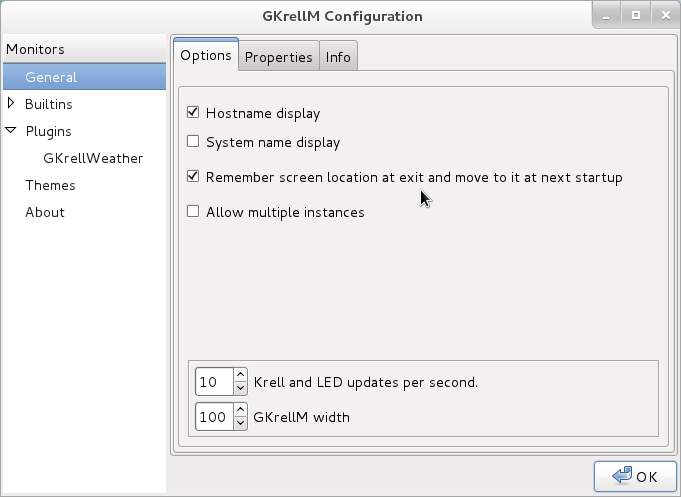
GKrellM can be easily configured.To access the configurations you can right click on the main window and access the configuration menu
Enable Bandwidth and Internet Usage Monitor
View internet data usage
We can view the internet data usage by clicking on the small button which will appear on the bandwidth monitor when the mouse cursor is moved over it
Enable Clock and Time
Remember screen location
This will cause the program to  remember the screen location so that it will show up where it is supposed to be even after restarting the system
Set As panel or dock setting
 This will cause the program to not show up in list of switchable programs when "Alt+Tab" , "Alt+`" key combinations are used.

GKrellM Weather Plugin
GKrellM has a lot of plugins whose rpms can be downloaded first,installed and then activated inside GKrellM settings and then configured to work properly. You can get weather updates on opensuse / linux / gnome using the GKrellM Weather plugin.

Download weather plugin
The program and plugins can be downloaded here:- here and here

Install GKRELLM with weather plugin
==>Open the terminal (type in "gnome-terminal" and hit return or enter after pressing Alt+F2 key combination)
==>Navigate to the directory of the where your package or rpm is present using cd <space><dirname>
==> Execute the command :-"sudo zypper in gkrellm-weather-2.0.8-1.fc16.i686.rpm gkrellm" 
Sample output for zypper installation:-
anonymous@linux-9p85:~/Software/rpms>sudo zypper in gkrellm-weather-2.0.8-1.fc16.i686 gkrellm2
root's password:
Loading repository data...
Reading installed packages...
'gkrellm2' not found in package names. Trying capabilities.
No provider of 'gkrellm2' found.
Resolving package dependencies...
The following NEW packages are going to be installed:
  gkrellm gkrellm-weather libpng12-0
3 new packages to install.
Overall download size: 497.0 KiB. After the operation, additional 1.3 MiB will
be used.
Continue? [y/n/?] (y): y
Retrieving package gkrellm-2.3.5-7.1.2.i586 (1/3), 397.0 KiB (1.1 MiB unpacked)
Retrieving: gkrellm-2.3.5-7.1.2.i586.rpm [done (63.5 KiB/s)]
Retrieving package libpng12-0-1.2.46-9.1.2.i586 (2/3), 73.0 KiB (170.0 KiB unpacked)
Retrieving: libpng12-0-1.2.46-9.1.2.i586.rpm [done (73.3 KiB/s)]
Retrieving package gkrellm-weather-2.0.8-1.fc16.i686 (3/3), 27.0 KiB (55.0 KiB unpacked)
Installing: gkrellm-2.3.5-7.1.2 [done]
Installing: libpng12-0-1.2.46-9.1.2 [done]
Retrieving package gkrellm-weather-2.0.8-1.fc16.i686 (1/3), 27.0 KiB (55.0 KiB unpacked)
Installing: gkrellm-weather-2.0.8-1.fc16 [done]
Additional rpm output:
warning: /var/cache/zypp/packages/rpms/gkrellm-weather-2.0.8-1.fc16.i686.rpm: Header V3 RSA/SHA256 Signature, key ID a82ba4b7: NOKEY

Configuring Weather Plugin
You need to get the 4 letter ICAO Location Indicator from this site
Navigate to the required country to display the weather stations
Locate the necessary location and get the 4 letter code
Right click on GKrellM window and click on configure menu and activate the weather plugin
Enter the location code and click apply
View weather updates
Note:-Similar installation and configuration can b carried out can be carried out for other plugins too.
Skins / Themes GKrellM
GKrellM has a variety of skins that can be downloaded here :- site
Typically the skin packages are available as tar packages like "MonkeyLovers.tar.gz" .You can untar or unzip them through terminal using command "tar -xvf MonkeyLovers.tar.gz" or you can use your favourite GUi based archiving tool like "peazip" or the gnome default "File Roller".

You need to move the skin folder to gkrellm theme folder.Sample path is:- "/home/<HOME>/.gkrellm2/themes/MonkeyLovers".Then you need to right click on the main window and click on "configure" menu and enable or switch to required theme.Alternatively you can click on the main window and use PageUp and PageDown keys to cycle through installed themes
 
Theme switcher
GKrellM in "MonkeyLovers" Theme


If you liked this post, you may like to check out:-


Things to do after moving to openSUSE 12.1 (Asparagus)
                       (OR) 

Tuesday, 29 November 2011

Install sun java and plugin on openSUSE 12.1

Install sun java and browser plugin on openSUSE 12.1

 Due to licensing issues openSUSE has dropped sun java from its repositories from openSUSE 12.1 onwards.Read the  release notes here

First you need to determine the OS architecture(32 or 64 bit).
==>To do this you can open terminal(press Alt+F2 and type in "gnome-terminal" and hit return or enter key)
==>In terminal execute the command "arch". It should give you output like "i586" or "i686" [32 bit] (Or) "x86_64" [64 bit]
Based on the architecture the relevant package must be downloaded.

You need  to install
==>jre or Java Run-time Environment is needed for executing jars or running class files on your system.Some application software like openoffice / libreoffice  need this to work properly.
==>Browser plugin is used to run applets on your browser

My Output

The Easy Way
This approach involves downloading the relevant rpms or software packages[Learn about packages] and then installing this using command mode(zypper way) or using YaST or GUI way

==>Get / download the rpms or packages for sun java jre here

==>Get / download the rpms or packages for browser plugin here
Warning : Don't use the one-click installs in above pages,just download the rpms and install them manually.If you use the one-click installs it will mess up your repositories unless you opt for not subscribing to 11.4 repository

JRE download

Browser Plugin download


Installation

Zypper way
==>Open the terminal
==>Navigate to the directory of the download using cd <space><dirname>
==> Execute the command :-
"sudo zypper in java-1_6_0-sun-1.6.0.u29-0.2.1.i586.rpm java-1_6_0-sun-plugin-1.6.0.u29-0.2.1.i586.rpm"
Note:- You may need to enter admin passcode when prompted

YaST/GUI way

==>Press the left windows key on the keyboard and click on "Applications menu"
==>Open Install / Remove Software under "Applications"
Note:- You may need to enter admin passcode when prompted

==>Click on configuration==>repositories
==>Click "+Add" button in the repositories (configured software repositories) window
==>choose "Local Directory" in the "Media Type"(Screenshot below) window and click "Next"
==>In the next window and  give a name to the repository like "rpms" and then choose the path where your downloaded files/rpms are.The  downloaded path should be something like "/home/<User Name>/Downloads", and enable the checkbox "Plain RPM Directory"then click "Next"

==>You should see a new repository or repo by name "rpms" there.
Click "Ok" button
==>You should come back to the main window.Here you need to click a drop down on the left and navigate to repository and choose the new repository "rpms"
==>Check the packages to install i.e."sun java and plugin" and hit the"Apply" button.After the installation finishes you can check the installation. Relevant screenshots are below.

Install/Remove Software
Media Type
Choose Directory
See New Repo "rpms"
Click on "Groups"
Choose rpms repo and Install JRE

If you liked this post then you might be interested in taking a a look at :-

Things to do after moving to openSUSE 12.1 (Asparagus)


The Hard Way

You can us this link to do a manual / geeky install.

Check Installation

If you are looking to test your installation then you need to open the terminal
an execute the command "java -version"


To check browser plugin Navigate here or here

If the installation is successful you must see something like this :-


Run or Execute jar files
If you looking for launching (or) running jar files then ,look here

Saturday, 26 November 2011

Audio,video and doc preview features in Nautilus 3.2.1 GNOME 3.2.1

How to activate  audio ,video and document preview in Nautilus 3.2.1 / GNOME 3.2.1/openSUSE 12.1 ?

 I you are searching for a way to activate nautilus based document and multimedia preview features in Nautilus 3.2.1 / GNOME 3.2.1 then you have landed at the correct place.This post talks about activating preview feature in openSUSE 12.1 specific terms. You many need to strain your grey matter a little if you want to implement this on other distributions.


Step1:-
To enable the preview features first you need to ensure that preview functionality is turned "ON" in Nautilus settings


Step2:-
Ensure that you install all the relevant gstreamer plugins  from packman repository using YaST or zypper.The gstreamer plugins you may need are "bad","bad-orig-addon","good","good-extra","ugly","ugly-orig-addon"


Step3:-Install "Sushi".Sushi is a quick previewer for Nautilus, the GNOME desktop file manager.Sushi is available under "OSS repository". This can be done through YaST too.

 All your set ups are done and now . You can test your preview feature by selecting any mp3 file and hitting "spacebar" on the keyboard .You can use preview feature for a lot of file formats like simple text file,pdf documents etc:
Of course you may need to install relevant packages like evince in case of previewing pdf files.You can see images below demonstrating preview feature on mp3,image,pdf and a simple text file.


Nautilus Tip :- Q:How to  delete/move any file/files to Trash or "recycle bin" in GNOME 3.X  / Nautilus 3.X onwards using keyboard?A:Select the required files and press the key combination "ctrl+Delete"

If you liked this post, you may like check out:-
Things to do after moving to openSUSE 12.1 (Asparagus)

Wednesday, 26 October 2011

How to get Totem 3.0.1(openSUSE 11.4,GNOME 3.0) working again after crash?

How to get Totem 3.0.1 ( openSUSE 11.4 , GNOME 3.0 ) working again after crash due to plugin?

{Crash caused due to misbehaving plug-ins like bemused}

The other day  I was fooling about with Totem's plug-ins .Suddenly Totem crashed and when I tried to start it Totem refused to start.Since it has a better and cleaner interface on GNOME 3.0, instead of switching to myriad other players I set upon fixing it.I found two solutions.

Solution one:-
==>This is an easy one.Remove Totem Plug-ins.Since it is the plug-ins that is causing the problem, the obvious solution is to UN-install the trouble maker.
==>Go to Install/Remove Software (YaST)and UN-install "totem-plugins"

==>Launch Totem and it will open up well


==>The cliché is that you will not be able to use any plug-ins

Solution Two:-
==>For unfortunate souls who crave to use  Totem plug-ins which "actually work" the following is the solution.This one is fairly straight forward too.It involves disabling all the plug-ins that get loaded when Totem starts up
==>First one must Install Dconf-Editor{Dconf is in short is a settings editor for GNOME 3.0[GSettings]} if not available.To accomplish that all one has to do is to use the software search tool in openSUSE website and finish installing the software/package by pressing a series of "Next" and "I Agree" buttons as and when they pop-up
For installation on openSUSE 11.4,GNOME 3.0 one can use the following URL and then click on one-click link as shown below openSUSE Software Search


==>After installation of Dconf-Editor one can start it by pressing the key combination "Alt+F2" and bring up the program launch window/Run Window/ command prompt or what ever name the tool.Then one must key in the magic words "open SESAME/CHASAM/Abracadabra" into the program launch window.Nope these don't work :-) .Use"dconf-editor" instead.

==>When "Dconf-Editor" opens up then one needs to navigate the tree on the left pane of the tool to a setting called org==>gnome==>totem.After reaching Totem node in the tool when one glances into the pane on the right hand side of the the tool.one can see all the plug-ins(Active plug-ins list) loaded by Totem when it starts up.One can either double click on the list and edit it or hit "Set To Default" button on the right hand side bottom of the tool.After you have done editing the list close the tool.

Before Totem Plug-in list Reset

After Totem Plug-in list Reset


==>Launch Totem and it will open up well.If it does not start up edit the plug-in list again in the Dconf-Editor