I had earlier already written about "openSUSE trying to offer E17 as mainline desktop" which covered topics like installation of E17 on openSUSE and "Changing backgrounds and themes in E17 openSUSE 12.2". Through this article I hope to cover left-over bits and pieces about E17 on openSUSE 12.2.
Install useful E17 packages
Using zypper
After installing E17 on openSUSE as described in the articles written earlier we can install some useful packages like weather forecast module,themes, mines game, shellmentary (zenity like pop ups ) etc...
sudo zypper in shotgun elemines e-theme-a-os-detour e-theme-a-os-green e-theme-a-os-miguel-v3 e-theme-a-os-vision-v3 e-theme-darkness e-theme-efenniht e-module-forecasts shellementary
Notes:-
sudo - use command as super user
zypper- package manager
in - parameter to indicate install
Using YaST
After invoking YaST installer you can easily select the repositories drop down and select the E17 repository and select and install the relevant modules by right clicking and install them as shown below.
Configure Weather Forecast Gadget on E17 / openSUSE 12.2
Enable Forecasts Module
You need to first open the main menu and navigate to Settings and then Modules menu. In the "Module Settings" you can select "Forecasts" module and press the "Load" button to activate this module.
Add Forecasts Gadget to Shelf
You can right click on the standard E17 dock or "Shelf" and then open "Contents" submenu . In the "Shelf Contents" window you can select "Forecasts" gadget and click on "Add Gadget" button to add the Gadget to the Shelf.
Configure Forecasts Gadget
To change "Forecasts" settings like city ,Units(Celsius, Fahrenheit) etc you can can right click on the Gadget or Widget and then choose Settings submenu. To get the Forecasts code you need to go to www.weather.com and get the weather codes for your city.You can use this code in the "Forecasts" gadget.
Getting Weather codes from weather.com
Changing Forecasts settings
E17 developing its own set applications
E17 developing its own set applications to become a full fledged DE and reduce reliance on applications from from other DEs.The following screenshot shown a game called elemines which is based on Enlightenment Foundation Libraries (EFL) , Terminology which is a cool terminal emulator for E17, E17's own built in file manager, Shotgun which is a XMPP (jabber) client using EFL libraries. I could easily connect with my gtalk contacts using shotgun.
Screenshot showing Elemines, Terminology, Shotgun and E17 file manager
Enable Shelf Auto Hide
Shelf which is the default dock on E17 can be set to "auto hide" state by right clicking on Shelf and choosing "Shelf==>Settings" and then selecting the "Auto -hide" option and then applying the settings.
Shellementary
Shellementary is an EFL based GUI application similar to zenity/kdialog and can provide GUI to shell scripts. I have tried to provide an information type of pop up using shellementary from terminology using the command shellementary --info --text 'e17 Rocks!'
More E17 Themes
In "Changing backgrounds and themes in E17 openSUSE 12.2" i have dealt about downloading , installing and changing themes for E17 from 3rd party sites. But now openSUSE does offer many themes in its repos. If you had installed the packages as described earlier in the article you should be able to see many themes on your E17 desktop. All E17 themes packages in openSUSE repositories are named as "e-theme-*". It is very easy to find them in YaST. I have posted some theme screenshots below.
Detour, theme for Enlightenment 17.
Green, theme for Enlightenment 17.
OS Miguel theme
OS Vision,Beige theme for Enlightenment 17
Theme darkness for Enlightenment 17
Theme efenniht for Enlightenment 17( incorporates cool wobble effects)
This is a continuation of an earlier article, openSUSE trying to offer E17 as mainline desktop. Read the linked article to know more about installing E17 (Enlightenment) on top of openSUSE desktop. This article focuses on changing desktop backgrounds and themes.
Change Backgrounds
I chose to download static backgrounds from E17 oriented site e17-stuff.org. I download the background files in *.jpg or *.png formats and placed them in default "Backgrounds" folder :-
/home/<UserProfileName>/.e/e/backgrounds (Or) ~/.e/e/backgrounds
To change background on E17 I open the relevant settings through Dock ==> Up arrow ==> Settings ==> Wallpaper.
In the background changer tool I "Turn Off" the checkbox ("Use Theme Wallpaper") and then chose the background and when I pressed the "Apply" button i get an error stating "Enlightenment was unable to import the picture due to conversion errors."
Then i click on the "Advanced" button and again chose the required background and click "Apply" . This time it complies and changes the background. It is kind of weird but it works !!!
Animated Backgrounds
The animated backgrounds for E17 can be downloaded from this link. Usually these files are of file pattern "*.edj" . I downloaded Cracked Earth and placed it inside themes folder :-
/home/<UserProfileName>/.e/e/themes (Or) ~/.e/e/themes.
I restart E17 desktop using the menu Dock ==> Up Arrow ==> Enlightenment ==> Restart. After restarting desktop I change theme using the menu Dock ==> Up Arrow ==> Settings ==> Theme ==> "Animated Background"
After setting the background we can see the new background as shown below. Cracked Earth background looks polished and the golden E17 logo is animated.
Change Theme
I downloaded the theme files from here which are also of file format "*.edj" and then placed them in themes folder . The steps for changing theme are similar to that of using "Animated Background" described above. The below screenshot is E17 with Camou theme. E17 themes are cool because they change window themes, backgrounds and icons in a single click.
Also checkout :- Weather forecast gadget,much more about E17 on openSUSE 12.2
openSUSE in the process of offering E17(Enlightenment) as mainline desktop which could really be huge draw. A portal has been created for E17 to provide info to the users. The portal talks about a long term goal of inclusion E17 on the openSUSE DVD along with GNOME, KDE, LXDE and XFCE. I hope these efforts materialize and we get to install openSUSE with E17 from a DVD. If you have openSUSE 12.2 you try out E17 desktop using a One Click installation process.
Enlightenment, is a window manager for X Window System. Earlier it was used in conjunction with a desktop environment such as GNOME or KDE. It is now trying to become a full desktop environment. Version 0.17 or E17 has been in development since late 2000. E17 is a totally different beast when compared to E16. E17 is designed to be a full-fledged desktop shell and is based on the Enlightenment Foundation Libraries (EFL).
E17 Installation
E17 can be installed very easily on currently released versions of openSUSE like 12.1 and 12.2 and also on the rolling release "Tumbleweed". The installation procedure is tested on openSUSE 12.2 / GNOME 3.4.2.
Caution:- E17 is at beta stage as of now. It is advised to turn off auto-login feature and create "test" profile , install E17 and use this "test" profile to login into the E17 session.
Using GUI / YaST
You can easily install E17 desktop by clicking on the relevant One Click links listed below. One click is a kind of automated procedure which will add the relevant repositories on your system and install the relevant packages through the YaST installer . You can read about more about package management here.
Using Cmd Line
Open the command launcher(Alt+F2) and then type in "gnome-terminal" and use the following commands to install E17.
- Add Repos
Add the relevant repositories based on the version of openSUSE you are using. You should generally never add incorrect repos as this may damage your system.
sudo zypper ar -f http://download.opensuse.org/repositories/X11:/Enlightenment:/Factory/openSUSE_12.1/X11:Enlightenment:Factory.reposudo zypper ar -f http://download.opensuse.org/repositories/X11:/Enlightenment:/Factory/openSUSE_12.2/X11:Enlightenment:Factory.reposudo zypper ar -f http://download.opensuse.org/repositories/X11:/Enlightenment:/Factory/openSUSE_Tumbleweed/X11:Enlightenment:Factory.repo
Notes:- "ar" is the add repo command, "zypper" is the package manger command, "-f" option will enable the repos as well as set auto refresh to true / yes. sudo is required because we need admin permission to install packages.
- Refresh repos
This step will pull in the meta data for all the repos and also pull in the software package list for each of the repos.
sudo zypper ref -f
Notes:- "-f" option will "force" raw metadata refresh
- Install E17
To install we need to use the following command.
sudo zypper in -r X11:Enlightenment:Factory e17 efreet elementary evas-modules libecore1 libedbus1 libedje1 libeet1 libeeze1 libefreet1 libeina1 libeio1 libelementary1 libembryo1 libemotion1 libethumb1 libethumb_client1 libevas1 terminology
Notes:- "in" is the command to install packages, "-r" option will ask zypper to install packages from a given repository / repo which is "X11:Enlig..."
E17 Overview
I like E17 because :-
- It has a polished default theme.
- Charming desktop effects.
- E17 is easy on system resources.
- It is easy to configure and use.
- Features a good looking dock.
The default desktop consists of
- Dock called IBox which holds a application menu, Pager which is a workspace switcher, Application switcher, various gadgets like CPU frequency setter, Clock and Calendar, Volume, IBar which is can used to hold launchers for your favourite applications.
- Desktop icons for root, home and temp folders.
The below screenshot shows IBox and expanded application menu and the folder & file manager
Dark is the default theme after installation
The below screenshot shows the Alt+Tab application switcher in action.
The below screenshot shows IBar settings window and the way to access it. IBar settings can be accessed by right clicking on the toolbar and then choose IBar==>Contents. IBar can be used to launch applications and IBar settings allows reordering of the applications.
The below screenshot shows the fully expanded context menu showing the navigation functionality of the of the File and Folder manager.
The preview feature in the File manger can be used to preview information about pictures and files. As soon as you position your mouse over a picture or image a wonderful properties window gets displayed as shown below.
The "Run Everything" application is very cool and can be used to search and launch various applications installed on the desktop. Run Everything can be accessed through the desktop menu. Alternatively it can also be launched using keyboard shortcut "Alt+Esc".
The default keys combinations for switching between workspaces are Alt+F1, Alt+F2, Alt+F3 and Alt+F4. You can alternatively use the "Pager" gadget on the IBox dock to switch between workspaces. You can even drag and drop applications from one workspace to another using the "Pager".
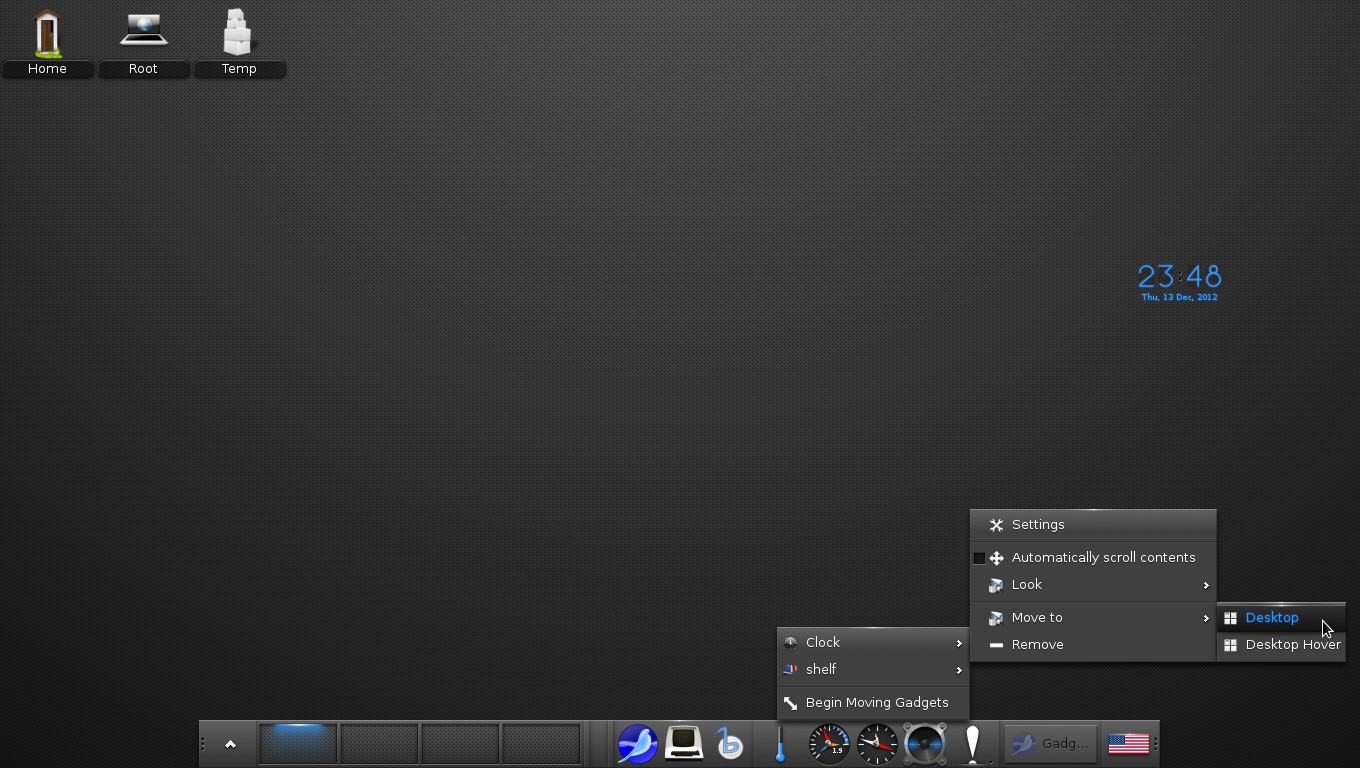
E17 is highly configurable. Most of the gadgets on IBox can be moved onto the desktop. I in below screenshot have moved the clock gadget from dock to the desktop. This behaviour is similar to the gadgets on latest version of KDE.
The below screenshot shows Opera playing a youtube video and Libreoffice Clac.
The next snapshot shows YaST NTP configuration and YaST Software Installer in action.
If you this post then check out :- Change Backgrounds & Themes in E17
Big Bash of Light weight Desktop Managers is about pitting against each other the various DMs offered by openSUSE 12.2 . It involves taking each of the each of the desktops for a spin and checking out whether they are good enough for daily use. The desktop managers described here are managed by the community and not officially supported. The end of the article features a table which compares and rates these desktops.
Special Note:-
It would be a good idea to create a new user profile and turn off auto login feature to avoid getting stuck with a broken system. To know more about user management from a GNOME 3.X perspective you may take a look at this post.
Since I had already written about Cinnamon i am not covering it again. The following are the desktop managers we are going to take a look at in the rest of the article
I badly wanted to review Razor Qt / Razor Desktop too. But it currently suffers from "Razor Death". Once we login the screen goes blank and I became it's latest victim :) .
Installation
- Assuming that you have GNOME 3.4.2 / openSUSE 12.2 installed, we need to ensure that we have installed the community repositories similar to what has been described here.
- Open the gnome terminal and add the relevant desktop repositories. The -f option will make the repos' auto-refresh enabled.
sudo zypper ar -f http://download.opensuse.org/repositories/X11:/windowmanagers/openSUSE_12.2/X11:windowmanagers.repo
- Reresh the repository metadata
sudo zypper ref -f
- Install the relevant packages/rpms
sudo zypper in iceWMCP icewm-gnome icewm-themes iceWMCP enlightenment epplet-base fluxbox fvwm2 pekwm pekwm-theme-adriano awesome
Awesome
It is a window manager for X. It is very fast, extensible. It is primarily targeted at power users and developers. It has minimal graphical user interface and is not the for people who need a GUI (Graphical User interface) to configure or do things. Awesome needs users to be comfortable editing config files and at ease with command line settings to perform basic things like changing wallpaper. If changing the desktop background involves editing a configuration file sounds like a bad idea then avoid Awesome.
Change background
You need to download a ".png" image of your choice as ".jpg" are not accepted by the themes framework and then edit the below line in the file "/usr/share/awesome/themes/default/theme.lua" provided you are using the default theme.
-- You can use your own command to set your wallpaper
--theme.wallpaper_cmd = { "awsetbg /usr/share/awesome/themes/default/background.png" }
theme.wallpaper_cmd = { "awsetbg /home/test/Downloads/Fable3-wallpaper_1280x1024.png" }
Open an application
Press key combination "Win key+r" which opens a tiny command launcher on the top panel where you can type in a command of your choice to launch any application. If you need to browse and need Opera you can type in opera in the command launcher and press the return or enter key.
Screen Layouts
Awesome provides a cool layout switcher at the right end of the panel which can be used to switch between 12 different screen layouts. The default is the floating layout. Using key combination "Win+Space" we can switch between various layouts.
Switch Screen Resolution
Awesome requires its users to know what XRandR is and how can one set the screen / display resolution using command line interface. You open a terminal by terminal in command launcher(win+r) or (win+Enter key) and then type in "xrandr -q" to get the screen resolution list.Then you can type in something like "xrandr --size 1280x1024". Ensure that the 'x' is a small one.
Close Applications
Applications can be closed using "win+shift+c" key combination.
Switch between workspaces
You can switch between workspaces using key combination "win+1, win+2, ..." or use the GUI tool on the panel numbered 1 to 9.
Application Switcher
Instead of using Alt+Tab for application switcher you need to use "win+Tab"
Screenshot of Awesome desktop showing time at the top right end of the screen, customised desktop wallpaper, a rudimentary panel at the top which also contains a workspace switcher and very simple menu at the top left hand side.
Screenshot showing Nautilus (File & folder organizer), Gedit (Text Editor), Terminal and SeaMonkey (Browser)
Enlightenment(e16)
Enlightenment also known simply as E, is a stacking window manager for the X Window System which can be used alone or in conjunction with a desktop environment such as GNOME or KDE. Only thing I found annoying is that the focus shifts to a window based on the location of mouse pointer on the screen. E16 has a very different user interface and main desktop consists of:-
- Two Pagers(Workspace Switchers)
- System Tray
- Icon Box(Dock or Panel like stuff) for switching between open applications
- E-Applets which provide additional functionality like E-NetFlame(Network app),E-CPUFlame(CPU load app), E-Exec(Application launcher)
The following snapshot shows the Enlightenment desktop with "iconbox" at the bottom of the page , systray at the right hand side bottom, Two pagers at the bottom left hand side, two E-Applets at the top left hand side.
The next snapshot shows the Enlightenment desktop with Alt+Tab switcher at the centre of the screen. It is a switcher with a difference as the applications are stacked vertically.
Instead of placing the application menu on the panel the desktop E has opted to display the application menu on the left click of the mouse.
Not many desktops provide maintenance menu to purge cache and stuff and i am impressed that E16 provides a way to purge desktop latency.
There is a very good E16 settings tool which provides various tabs to manage sessions, theme, desktop background and a host of other settings.
Fluxbox
Fluxbox is a lightweight window manager for the X Windows. It offers a bare bones desktop similar to Awesome and requires a high degree of customisation using command line and editing myriad config files.
The default desktop with command launcher(Alt+F2) is displayed below
Fluxbox showing Gedit and nautilus
Fluxbox screen with context menu(right click) showing sub menu to change themes
Fluxbox theme ZimekGreen in action. The snapshot also shows the way to customise panel/toolbar which consists of a widget showing list of open application list, workspace switcher , time widget and system tray.
Since Fluxbox doesn't give you a fully loaded application menu the desktop users can download the menu creator software from here and create their own menus as displayed below. After you download the menu creation software you can extract the archive file and then launch the tool by using the command "python fluxMenu.py" from terminal.
After creating your own customised application menu you can get a menu similar to the one below . When creating new menus you may want some icons. You will find that application icons are of format "png" or "xpm" and are available under folder path "/usr/share/pixmaps"or "/usr/share/icons/...".I have created four custom menu items for applications Shutter(Screenshot Tool) , SeaMonkey( Browser ), Artha( Thesaurus ) and Pinta( drawing/editing program ) using the menu creator software as shown in the screenshot.
FVWM
FVWM is a window manager for X Windows. FVWM is intended to have a small memory footprint but a rich feature set, to be extremely customizable and extendible. This window manager tends to iconify windows and place them at the top left hand side of the desktop when minimised which i found to be novel and at the same time amusing.
Default start up screen of FVWM with banner displayed prominently. You can see the task bar at the bottom of the page.
FVWM provides a very cool feature for power users. It provides menu item which launches xterm in super user mode which is very helpful if we are going to change any settings.
FVWM screenshot showing Libreoffice Calc, Pinta and xterm windows
FVWM iconifies applications when they are minimised
FVWM has a very simple and dull looking application switcher (Alt+Tab). I guess it reflects the age of the product.
There is cute application launcher called Talk!
IceWM
IceWM is a ice cool window manager for the X Windows System .It has lot of quirky themes. IceWM features multiple workspaces, opaque move and re-size, taskbar, window list, mailbox status, and a digital clock. It is fast but at the same time has a lot of features. It has a good desktop configuration utility in the form of iceWMCP (IceWM Control Panel) which can be accessed through the main menu.
The fact that the main menu of IceWM responds to windows key on keyboard is a welcome relief compared to other desktops which have not bothered to implement this simple feature. The panel is loaded with buttons like "show desktop" button, "window list" button which adds up to provide a good user experience. Pressing "Win+Space" opens up a command launcher on the panel which is pretty cool.
This is a screenshot of the default IceWM desktop with toolbar / taskbar at the bottom of the screen.The toolbar has a network monitor as well CPU load monitor at the right end near the digital clock. If we want more detailed stats we can click on the monitors and they will open full fledged monitors.
The application list is exhaustive and can be accessed either through right click of mouse of through icemenu(win key) at the bottom of the screen.
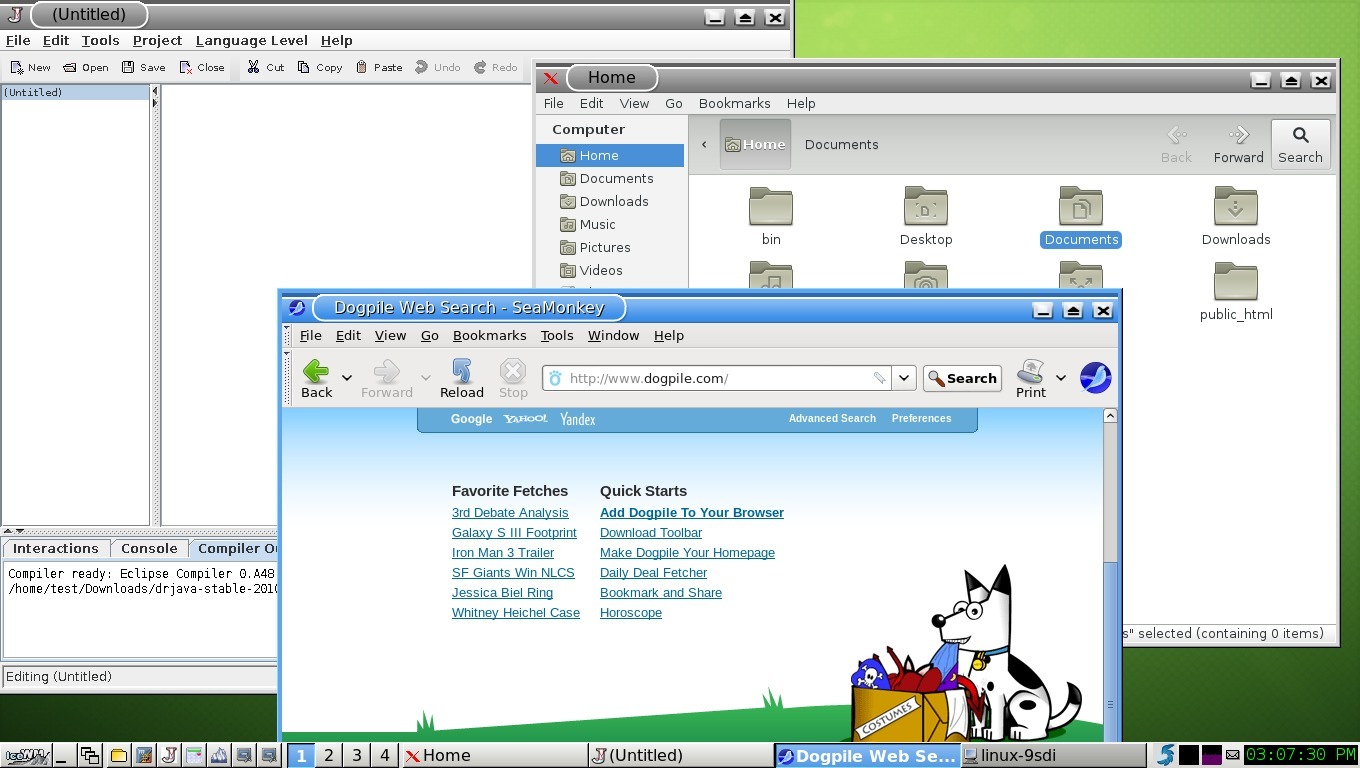
The below screenshot shows Nautilus(File manager), SeaMonkey (Browser) and DrJava (light weight IDE for Java)
IceWM with xterm and YaST installer in action
You can launch the "IceWM Control Panel" using the command "iceWMCP" from xterm. The control panel allows users to do various activities like change themes, change desktop backgrounds etc.
The IceWM Menus or IceMe provides a cool way to add more application launch buttons to the panel/toolbar.
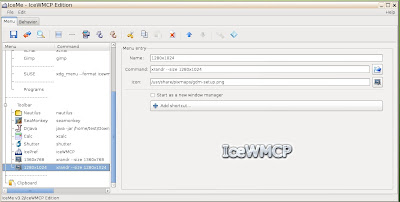
To customize IceWM we can create the following files in the folder "~./.icewm"
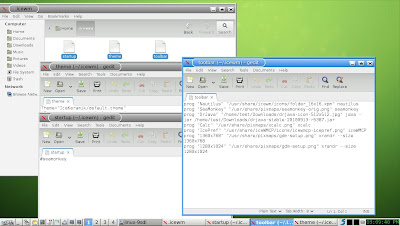
- toolbar - If you make entries in this it will create application launchers in toolbar. The entries in my file as below. The format is prog<space>"<tooltip>" "<iconpath>"<space><excutable name>
prog "Nautilus" "/usr/share/icewm/icons/folder_16x16.xpm" nautilus
prog "SeaMonkey" "/usr/share/pixmaps/seamonkey-orig.png" seamonkey
prog "DrJava" "/home/test/Downloads/drjava-icon-512x512.jpg" java -jar /home/test/Downloads/drjava-stable-20100913-r5387.jar
prog "Calc" "/usr/share/pixmaps/xcalc.png" xcalc
prog "Shutter" "/usr/share/pixmaps/shutter.png" shutter
prog "IcePref" "/usr/share/iceWMCP/icons/icewmcp-icepref.png" iceWMCP
prog "1360x768" "/usr/share/pixmaps/gdm-setup.png" xrandr --size 1360x768
prog "1280x1024" "/usr/share/pixmaps/gdm-setup.png" xrandr --size 1280x1024
- startup - This file needs to be made executable and any executable / program entries made in this file are executed at start of IceWM session.
- theme - The theme settings are stored here. The settings look are something like this
Theme="icedesert/default.theme"
You can use MenuMaker to recreate the the IceWM menu using the command "mmaker icewm" which creates menus based on categories like "Education", "Development" etc. You can refresh menus using command "mmaker icewm -f". You can get the MnuMaker executable by extracting the archive downloaded from the link. The following screenshot shows the menu created by MenuMaker.
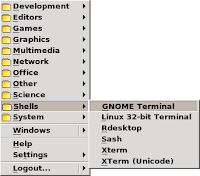
Though outdated this page should serve as a good starting point for your IceWM customisation needs.
PekWM
pekwm is a window manager which was based on the aewm++ window manager. It has a expanded feature-set, including window grouping , autoproperties and much more. It is very Lightweight and unobtrusive. It feels like an much improved version of TWM. I would call it TWM++. The following screenshot shows tiled windows of running applications on PekWM.
The default theme has a Orange tint to it. Here is screenshot of Gedit, Nautilus and Terminal applications and PekWM after applying "Vista Black" theme.
All PekWM applications sport 4 buttons on the top bar which are "Tiling button" on the top left and then the usual minimize, maximize and close buttons are bunched together at the top right.But in some themes(Vista Black) all the four buttons appear together .
The application menu can be launched using the key combination "Mod4+R" or "Winkey+R". It can also be opened by right clicking on the desktop.
When applications are minimized they get hidden unlike what you see on other desktop managers. Once minimised they can be opened using the "Focus Client" which can be accessed through the application menu.
The command launcher is mapped to "Mod4+D" or "Winkey+D" and very useful to launch applications.
You can use MenuMaker
to recreate the the PekWM menu using the command "./mmaker -f pekwm" which
creates menus based on categories like "Education", "Development" etc.You can get the
executable by extracting the archive from this link.
Sample PekWM config file can be obtained from here. It can be downloaded and copy pasted into the path ~/.pekwm/ or /home/<profileName>/.pekwm. This folder has various files which can be used to configure things like programs which should startup with PekWM and so on. To figure out the usage of all the configuration files you can take a look at this webpage. Here is also a official page for your configuration needs.
Comparison & Rating
Window
Manager |
Ease
Of Use |
Cmd
Launch |
Theme
Support |
Sys
Tray |
Dock
Panel |
Steep
Learn
Curve |
App
Menu |
Personal
Rating |
| Awesome |
No |
Win+x |
Yes |
Yes |
Yes |
Yes |
No |
2/5 |
| E16 |
Yes |
E-Exec
(Applet) |
Yes |
Yes |
Yes |
No |
Yes |
4/5 |
| Fluxbox |
No |
Alt+F2 |
Yes |
No |
Yes |
Yes |
Yes |
3/5 |
| FVWM |
Yes |
Talk |
Yes |
No |
Yes |
Yes |
Yes |
3/5 |
| IceWM |
Yes |
Win+Spc |
Yes |
Yes |
Yes |
No |
Yes |
5/5 |
| PekWM |
No |
Win+D |
Yes |
No |
No |
Yes |
Yes |
3/5 |